Submit a missing MCP server
Found an MCP server that is missing from LightNow and maintained by someone else? Send us its public repository URL. LightNow takes care of adding every supported MCP server it finds to the Registry.
github.com/acme/mcp-serverserver.jsonmanifest.jsonmcp.jsonpyproject.tomlpackage.json
acme/mcp-serverSubmit from the Registry
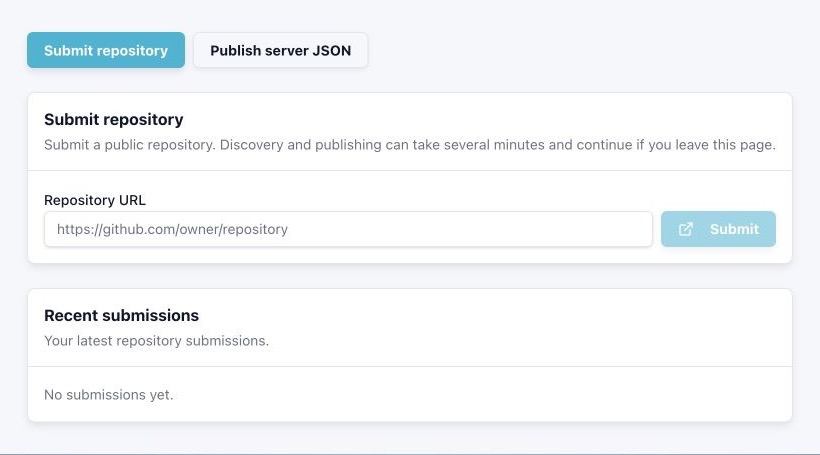
If someone else's public MCP server is missing from the Registry, paste its repository URL and LightNow takes care of the rest.
- Sign in to LightNow.
- Open Create → Submit repository.
- Enter the public repository URL and select Submit.
- Follow the status on the page, or return later to Recent submissions.
- When processing is complete, open the published MCP server from the result.
Processing can take several minutes and continues after you leave the page. Submitting a repository adds supported MCP servers to the Registry; it does not install them.
Link an existing Custom server
Use this path when an imported or manually added server appears as Custom in a Runtime Profile. Linking replaces the Custom identity with the versioned Registry identity while keeping the instance runnable.
- Open Profiles and select the Runtime Profile that contains the Custom server.
- Select the server and open Link.
- Search the Registry first. If the MCP server already exists, select it and link immediately.
- If it is missing, select Import from repository, enter its public repository URL, and submit it.
- Close the dialog if you want. Processing continues, and the active request is shown when you return to the server.
When the repository produces one MCP server, LightNow links it to the selected Custom instance as soon as publishing finishes.
When several MCP servers are published, select the one that belongs to the Custom instance. Other artifact types cannot replace it.
A failed submission or link does not silently remove the existing server. The displayed status explains why the repository was not published.
What linking keeps
LightNow carries the instance-specific settings to the selected Registry version:
- the instance alias in the Runtime Profile;
- command, arguments, transport, URL, headers, environment mapping, and other launch settings;
- encrypted secrets managed by LightNow.
After linking, LightNow reloads the Runtime Profile and shows the regular versioned config and secret controls immediately.
Follow progress
You can leave the page or close the Link dialog. Return through Recent submissions or reopen the Custom server.
Review its repository, name, version, packages, transports, ownership, and trust signals before using it.
The repository produced several MCP servers. Select the result intended for this Runtime Profile instance.
The status explains why the repository was not published. Existing Custom config stays available.
Repository submission requires Registry write permission in the active Personal or organization context. Linking also requires permission to manage the selected Runtime Profile.